CAN I RUN IT?
Check if your PC can handle the horror. No downloads required.
Scanning system...
Before You Buy
Run check plus comfort check
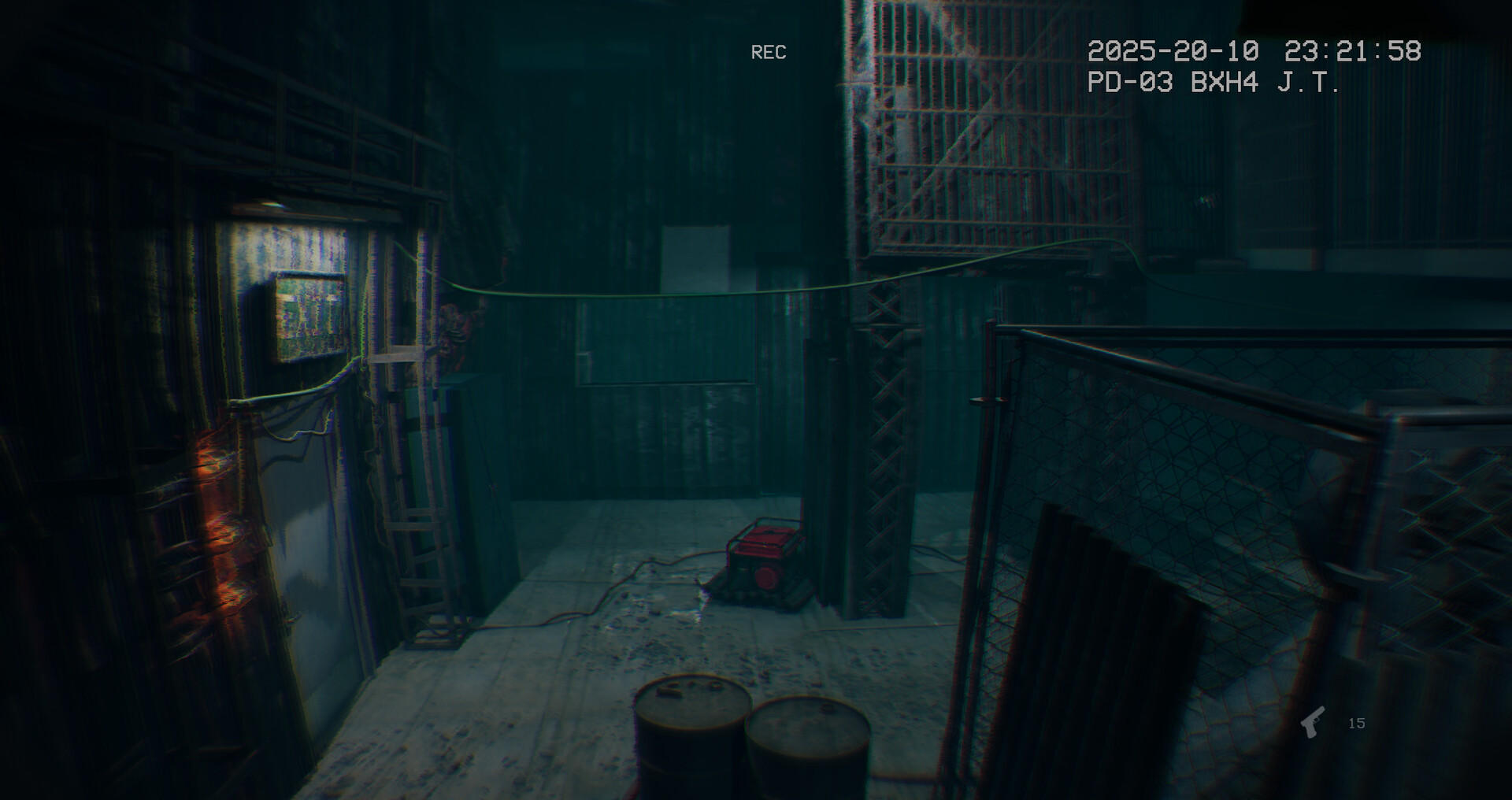
Passing minimum specs is only part of the decision. Steam Discussions also mention bodycam blur, camera shake, and post-processing comfort.
If your machine is borderline, start with the demo and lower visual effects before judging the full game.
Quick Answer
Fast answer for players
Quick answer: To decide whether you can run It Reaches, compare your PC against the Steam requirements, then test the demo for real-world FPS, bodycam blur comfort, and input feel. Specs alone do not predict motion comfort.
Frequently asked questions
Can I run It Reaches on a low-end PC?
Compare your CPU, GPU, RAM, and storage against the official Steam requirements. If your hardware is borderline, use the demo before buying.
Why does comfort matter for compatibility?
Bodycam horror can feel heavier than normal first-person games because blur, shake, darkness, and post-processing affect readability.
What is the fastest compatibility test?
Install the demo, play through a dark corridor and combat sequence, then check frame stability and whether the camera effects feel comfortable.
Manual Compatibility Checklist
Do this before you buy or refund
Browser-based hardware detection is limited, so treat this page as a decision checklist rather than a magic scanner. The reliable path is simple: identify your CPU, GPU, RAM, Windows version, and available storage, then compare them against the minimum and recommended requirements.
- Check GPU first. A GTX 1060 6GB-class card is the minimum reference point. If you have integrated graphics or an older 4GB card, expect compromises and test the demo.
- Check RAM next. 8 GB is the minimum baseline; 16 GB gives Windows, overlays, recording tools, and Discord more breathing room.
- Check CPU and thermals. A desktop i5/Ryzen 5 class chip may be fine, but thin laptops can throttle during horror scenes with heavy effects.
- Check comfort, not just FPS. Bodycam blur, camera shake, darkness, and sound intensity can make the game feel heavier than a normal first-person title.
After the demo, judge three real moments: a dark exploration corridor, an interaction-heavy sequence, and a sudden scare/combat moment. If all three are readable and stable, your PC is probably ready for the full game.
Common PC Scenarios
What your setup probably means
A compatibility result is more useful when it is tied to a real setup. Use these scenarios as a practical starting point, then verify with your own demo test because drivers, laptop power modes, background apps, and monitor resolution can change the result.
If you are still unsure after checking specs, the best answer is not another spec table. Play the demo for ten minutes, then ask: did the game stay readable, did input feel responsive, and did the camera effects feel acceptable? Those three answers matter more than a green badge.
Source Notes
Why this checker stays conservative
We do not promise a perfect automated result because browsers cannot reliably expose every hardware detail. A responsible compatibility page should explain uncertainty instead of hiding it. That is why this page uses official requirements, a manual checklist, and demo testing together.
If a future patch changes performance, the safest source is still the Steam store page and Steam News. Use this guide as the practical interpretation layer: it tells you what to test, what tradeoffs matter, and when a borderline setup should wait.